Pipelines Overview
Pipelines organize WhatsApp contacts into a process your team can track. A sales team might move Leads from New to Won, while a support team moves Tickets from Open to Resolved.
Each pipeline can use its own friendly name for the contacts in it. This guide uses item when something applies equally to a lead, ticket, application, or another configured name.
What Pipelines help you do
- See the current stage of each contact.
- See who owns the work and which team handles the conversation.
- Move contacts through a defined process.
- Identify contacts that have been quiet for too long.
- Automate enrollment and stage movement.
- Report on progress, response times, outcomes, and conversions.
Understand the main parts
Term | What it means |
|---|---|
Pipeline | The complete process, such as Sales, Customer Support, or Onboarding. |
Stage | One step in the process, such as New, Demo booked, or Resolved. |
Item | A contact's journey through one pipeline. The UI uses the pipeline's configured name, such as Lead or Ticket. |
Assignee | The teammate recorded as responsible for the item. |
Team | The team or teams associated with the contact's conversation. |
Source | How the contact entered the pipeline, such as manual enrollment, automation, API, or MCP. |
At risk | The item has been quiet longer than the current stage's warning threshold. |
Dropped off | The item has exceeded the current stage's drop-off threshold. |
Timeline | The recorded history of enrollment, stage movement, messages, drop-off, and other pipeline events. |
Open and switch Pipelines
Go to Pipelines. Peach opens the first relevant pipeline, and you can use the pipeline name at the top of the page to switch to another one.
What you see first depends on the pipeline:
- If it already contains items, Peach opens the current-items tab.
- If it has automation rules but no items yet, Peach opens Analytics.
- If it has neither items nor automation rules, Peach opens Automations to help you configure enrollment.
Understand the three tabs
- Leads, Tickets, or your configured item name shows the pipeline's current items.
- Analytics reports activity and outcomes for a selected period.
- Automations lists rules connected with the pipeline.
The current-items tab is a live operational view. Analytics is a historical reporting view. Their totals can differ because they answer different questions.
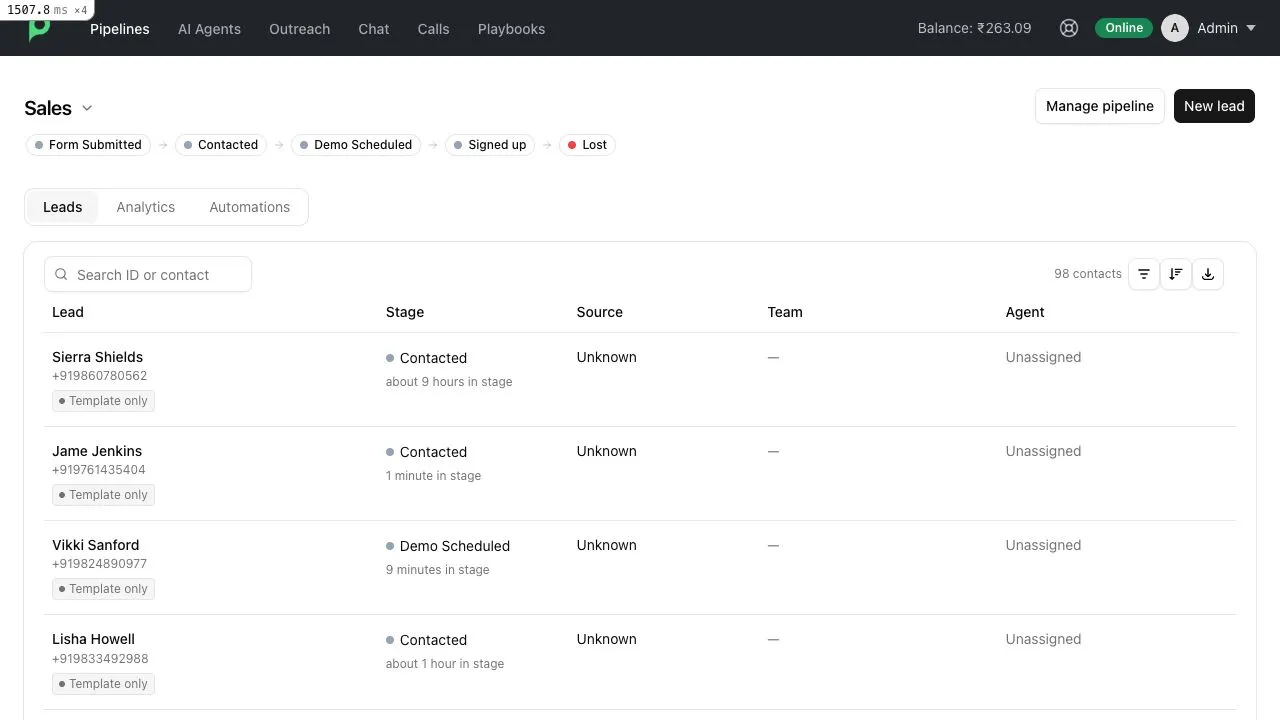
Add an item manually
- Open the pipeline.
- Select New lead, New ticket, or the equivalent button.
- Select an existing contact, or enter a phone number.
- Add the item.
If a manual-enrollment automation matches, that rule can choose the starting stage. Otherwise, Peach adds the item to the first open stage. A manually added item is assigned to the teammate who added it.
A contact can have only one active item in the same pipeline. The same contact can be active in different pipelines.
Find current items
Use the current-items tab to search by item ID or contact. You can filter the list by:
- Stage
- Agent
- Team
- WhatsApp reply-window status
Sort the list by Newest activity, Oldest in stage, or Recently enrolled. You can also export the filtered contacts as CSV.
Read an item row
An item row can show:
- Contact name, phone number, and readable item ID
- Current stage and time in that stage
- Most recent activity
- Enrollment source
- Team and agent
- Whether the WhatsApp 24-hour reply window is open
- Whether the contact is awaiting a response, at risk, or dropped off
Open and move an item
Select a row to open the item drawer. The drawer shows the contact, current stage, assignee, time in stage, last activity, source, response status, latest conversation text, and event timeline.
From the drawer you can:
- Move the item to another stage, if you have permission.
- Open the related WhatsApp conversation.
- Copy the readable item ID.
- Review the event timeline and drop-off reason.
Every stage move is recorded and starts a new time-in-stage measurement.
Understand stage types and inactivity indicators
Stages have one of three types:
Stage type | Meaning |
|---|---|
Open | Work is still in progress. |
Won | The item reached a successful final outcome. |
Lost | The item reached an unsuccessful final outcome. |
At risk and Dropped off are inactivity indicators applied by stage drop-off rules. They are not general-purpose work statuses.
A simple daily workflow
- Filter the current-items list to yourself.
- Sort by Oldest in stage to find items that may be stuck.
- Review items marked At risk before they drop off.
- Open the WhatsApp conversation and take the appropriate action.
- Move the item when it progresses to another stage.